
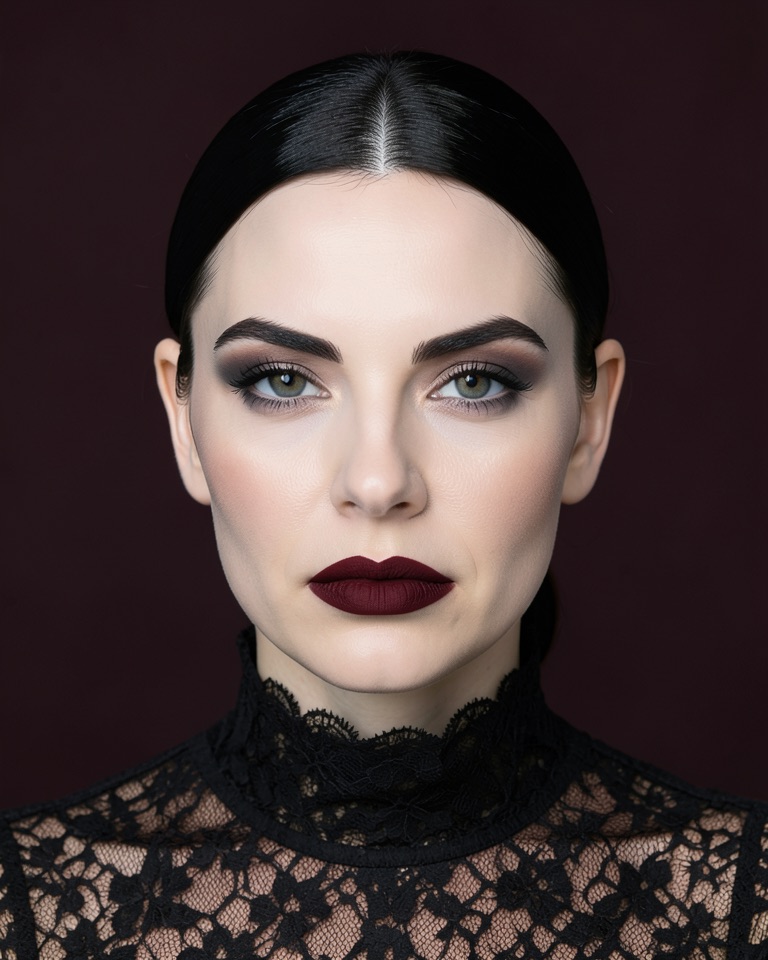
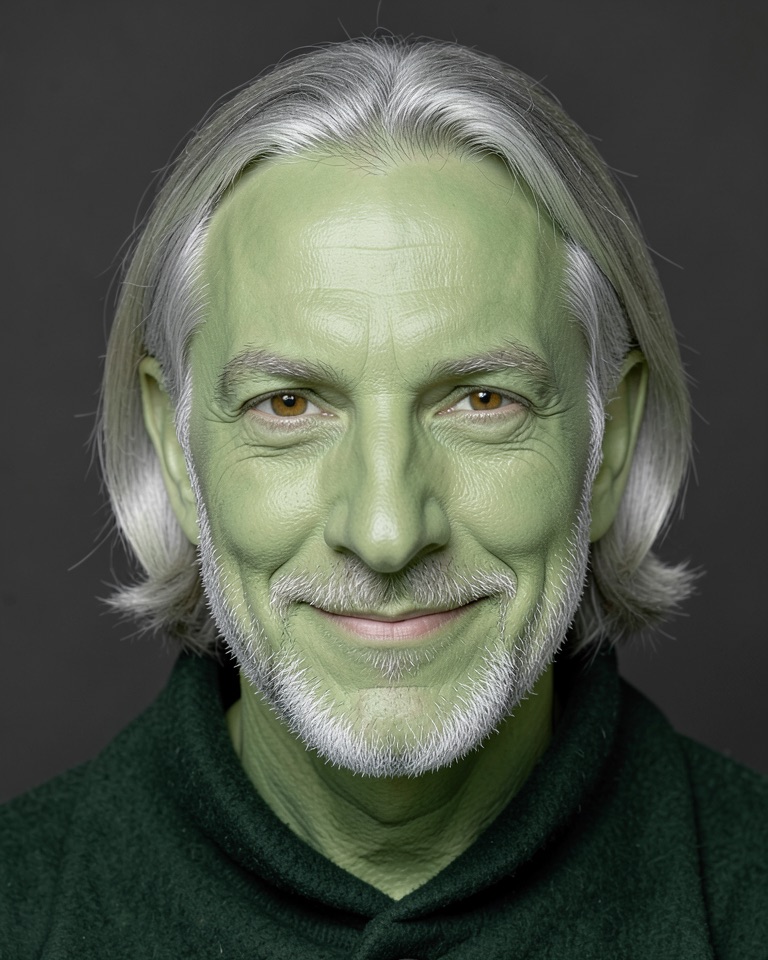
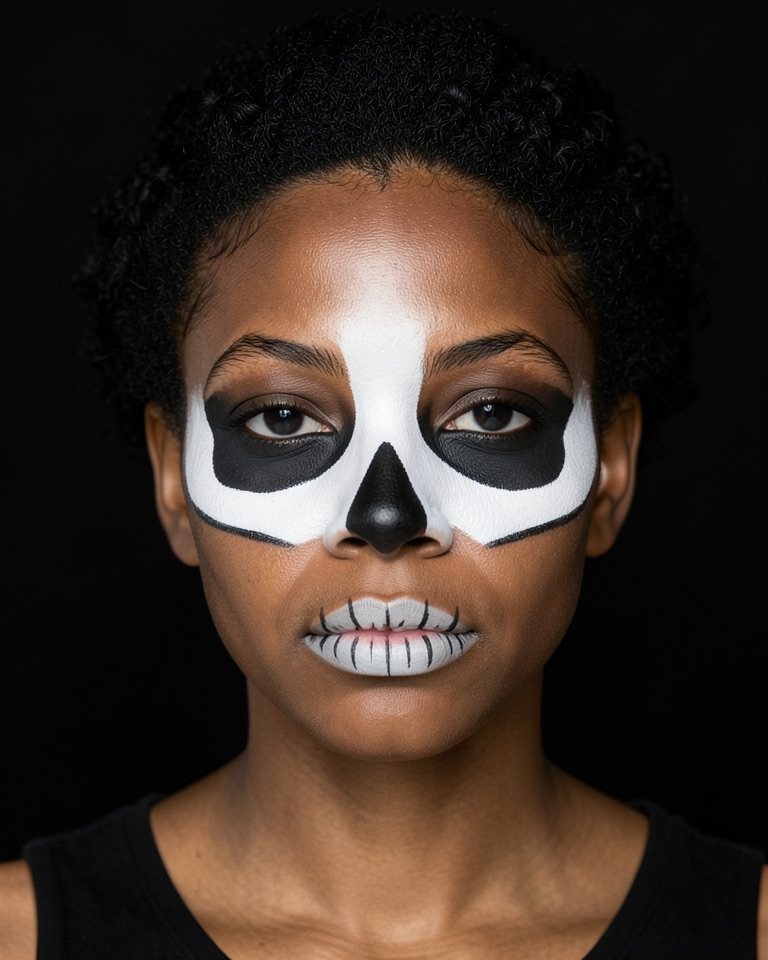

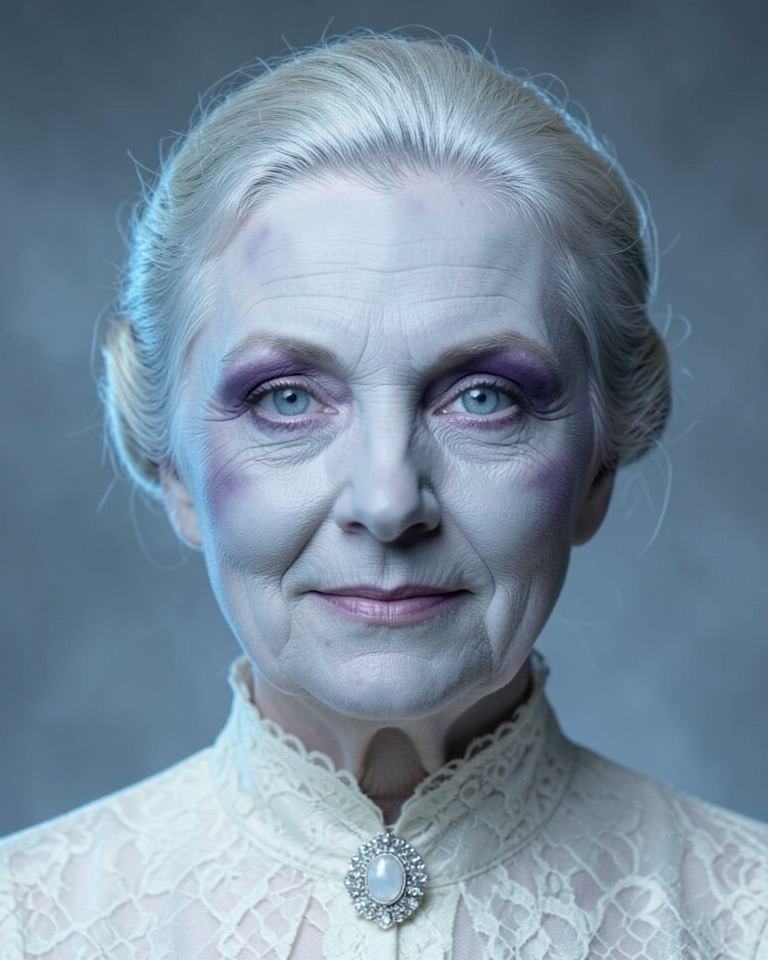
Three ways to do Halloween in the live workspace
The workspace has three effects, and each one gives you a different kind of costume. Only one runs at a time, so pick the one that matches the call.
- Face Swap: upload one of the faces above, your own costume selfie, or pick the built-in Zombie, Cyborg or Elf preset. Best when people should see a character, not you.
- Try-On: keeps your face and replaces your clothes. Choose Knight armor or Black tuxedo, or upload a photo of a cape or costume you like.
- Restyle: turns the whole frame into Claymation, Comic book, Oil painting, Cyberpunk neon and other styles, so you stay recognisable in a spooky look.
- Free on your device: Pencil sketch and Comic ink. They cost nothing and need no sign-in, which makes them a good test before a call.
Getting the reference face right
The live model copies what it can read from the reference: the face shape, features, skin tone and hairstyle. Hats, veils, hands near the face and heavy shadows give it less to work with, which is why the faces above are front-on, evenly lit and bare-headed. If you make your own, keep those rules and copy the structure of a recipe: who the character is, the skin and hair, a straight-on gaze and a list of things to leave out.
Your side matters as much. Sit facing a window or a lamp, keep your face roughly the same size in frame, and avoid backlight from a bright window behind you. You can swap to another reference photo while the session runs, so try two faces before the party starts.
Zoom, Discord, Twitch and OBS on Halloween night
In the browser, the workspace is a preview: other apps cannot see it. To appear as your Halloween face in a call or stream, install the desktop app (Windows 11, or macOS 13 or later on Apple Silicon), start the effect there, then select LiveFaceSwap Camera as the camera in Zoom, Teams, Google Meet or Discord, or add it as a Video Capture Device in OBS for Twitch and YouTube. The detailed Zoom and OBS guides on this site walk through each menu.
The first AI frames usually appear 10 to 25 seconds after you press Start, so switch on a minute before you join, not when the host says “cameras on”. Credits are counted only while AI output is running; previewing your camera and choosing a photo are free.
Keep the costume party fun
Use your own face, a fictional face like the ones above, or a portrait of someone who said yes. Do not use a live face to pass yourself off as a real person, and tell the people on the call or stream that they are watching an AI-altered video. A short “it’s a filter” in the chat or the stream title is enough, and it saves anyone from wondering who just joined.